Pixelate a face
Pixelate faces in one go
Every face gets the same chunky mosaic, so nobody is half hidden.
Free · No sign-up · Photos stay on your device
No photo handy?
Pixelate face in photo: every face found on this device gets the same number of mosaic blocks across it, however large it is. Free, nothing uploaded.
- On-device face finder
- Mosaic with a per-face cell floor, solved in each face's own pixels
- Normal or Find more sensitivity
- Keep any face visible
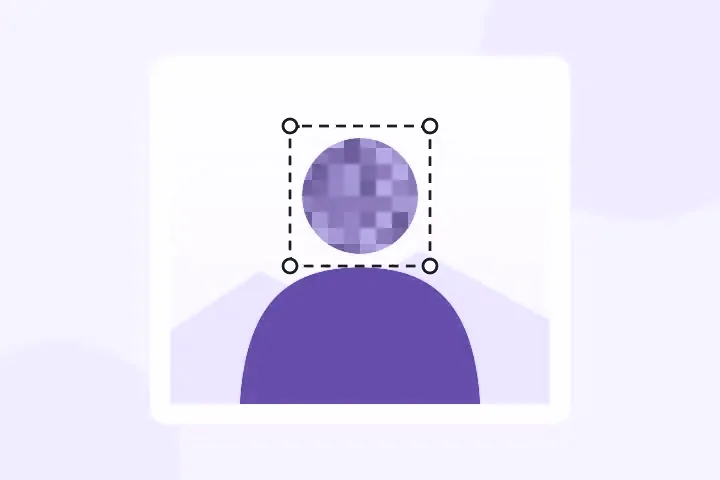
The mosaic look over every face, with a floor under it: each face gets the same number of blocks across however large or small it is in the picture, solved in that face's own pixels.
A group photo, a street scene, a screenshot of a video call. Opens JPG, PNG, WebP, GIF, BMP and ICO.
Whole-photo, background, focus and region blurs, and the three privacy coverings, open with your picture. Privacy mode opens with the solid fill, the only covering here that cannot be run backwards.
The mosaic look, with a floor under it
Most pixelate tools use one block size for the whole picture, which pixelates a face in the front into a coarse grid and barely touches one in the background. Here the block is solved per face: choose how many cells go across a face, and every face gets that many, each in its own pixels. The finder proposes the faces; the mosaic is applied the moment they appear.
A mosaic is a set of averages, not nothing. The fewer cells, the less survives.
When another mode is better
To make a face unreadable rather than stylised, blur face in a photo opens with the solid fill. To keep one person and cover the crowd, use blur people in a photo. To pixelate the whole picture or a part you draw, use pixelate an image.
Limits, stated plainly
- A mosaic keeps the structure of what it covered; the verdict on each face says so.
- The finder misses small, turned and partly hidden faces — look before saving.
- No face recognition, matching or age estimation happens here, ever.
- Saving drops the file's metadata, and the receipt reads the saved file back to show it.